
If you’re using Power Automate and Business Central, you might have played with environment variables. For Power Automate flows that are built inside a solution, environment variables can be created to represent an environment or company in Business Central. These can then be referenced inside the Power Automate flow and moved with the environment. By being able to update a single place to change the environment or company, environment variables make it easier to move solutions around between environments.
While you can hardcode in the environment name, when you use an environment variable for a company in Business Central, you need to reference the company’s ID and not the text.
New to Business Central? Here's the short list of what trips people up first.
Where can I find the company ID (GUID)
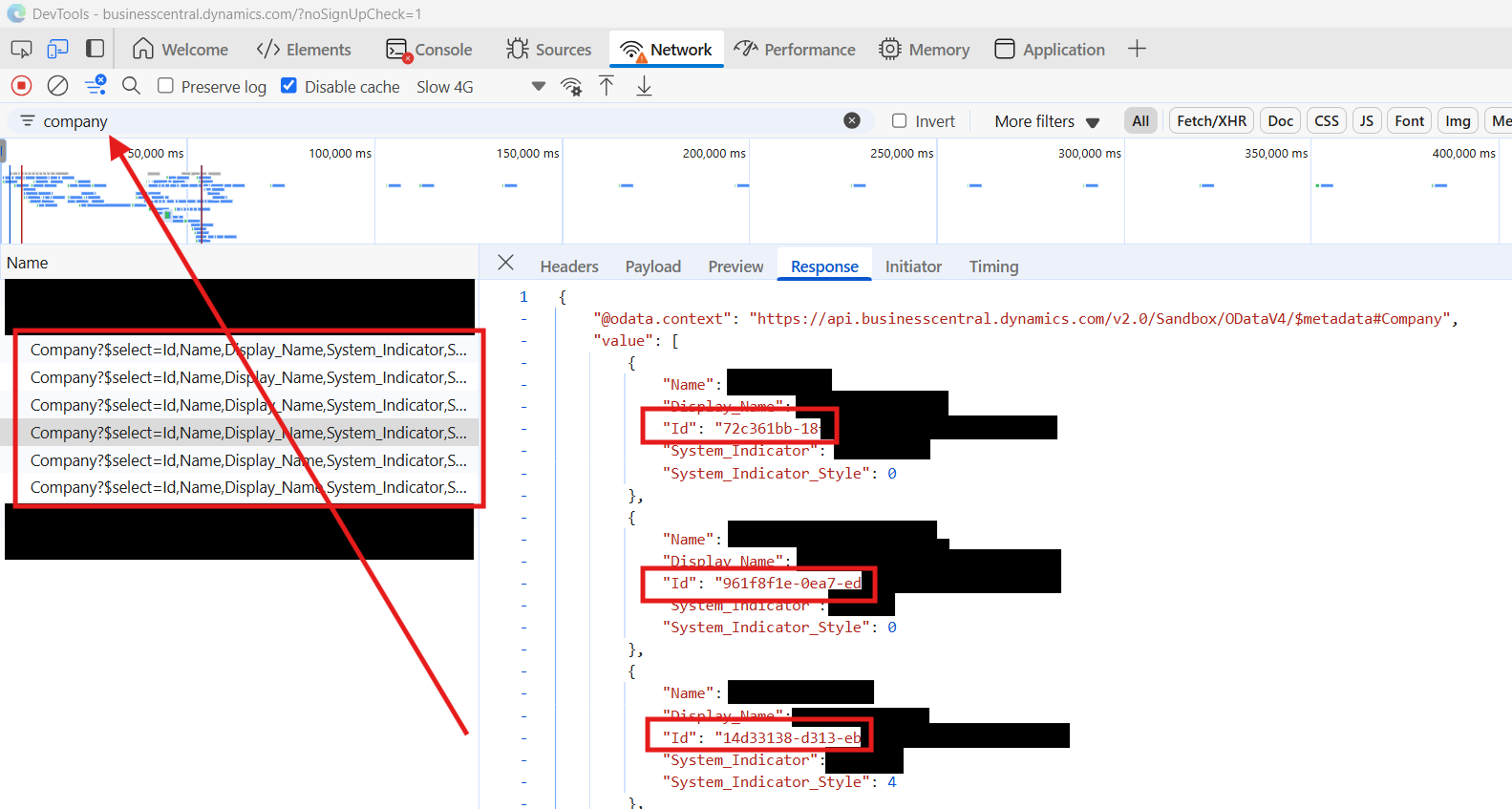
There’s some API and some other ways to do this, but the easiest for me is to just pop up the Developer tools in the browser and find it there.
To do this, open up Business Central. Once it’s loaded, right-click in your browser and click “Inspect”. Click the “Network” tab, press Ctrl+R to refresh, and then wait for the browser to fully load.
Once that’s done, search for “Company” in the network page and you’ll see a record called “Company?$select…” for each environment. Click the “response” tab, find the right one, and Bob’s your uncle.

Leave a Reply